

Getting to know Wwise: Containers Pt. 2. Blend Container.
Updated: 5 days ago
In this chapter we will begin the analysis of the Blend Container and the types of sounds that we can include in our containers such as Ambience Spots and Ambience Beds.
In this first part of the Blend Container analysis we will learn how to create a simple dynamic environment, without using sound effects such as reverberation, blend tracks or RTPC parameters and putting into practice previously learned concepts.

The Blend Container is an audio object that can play different sounds or containers at the same time and has the ability to perform crossfade and dynamic mixing between sounds or containers through real-time parameter controls (RTPC) that are mapped to different adjustments such as volume, pitch or crossfade quantity.
The Blend Container is the only container in Wwise that plays "child" sound files or containers at the same time by default, honouring the settings of each "child" element such as Initial Delay.
We can force simultanous playback of all "child" elements in a Random or Sequence containers if we activate Continuous Mode with transitions in Trigger Rate mode with a triggering time of 0 seconds and with inactive randomisation. This results in simoultaneous playback of all the elements, however, not the random or the sequence containers are designed for this type of audio execution behavior.
Let's go ahead and create our first Blend Container.
By clicking the Default Work Unit, located in the Audio tab of the Project Explorer, we will go to the top bar and click the option “Create new Blend Container”, as shown below. We will simply call it “Ambience” ("Ambiente" in the example images below).
The Blend Container window opens as part of the Designer layout and features three particularities:
The Blend Tracks creation window, where we can create a new blend track by clicking on New Blend Track. We will explore this attribute in the next chapter.

Next, there is a window that shows the contents of the Blend Container.

And lastly, a window called “Blend Tracks” where we can drag the sound files or containers that we want to mix/crossfade dinamically in a blend track.

We will use these windows in the next chapter.
To start, we will use the Blend Container to execute two Random containers at the same time. This will create a simple 2D dynamic environment and we will practice a little of what we learned in the last chapter about the features of the Random Container.
First, let's create two Random containers inside our newly created Blend Container, one called Spots and another called Beds as shown.

Before continuing, let's talk about the two types of ambience sounds in game audio: spots and beds.
AMBIENCE SPOTS

In audio for video games or interactive experiences, spot sounds (or ambience spots) are all those sound effects which primary function is to create variety and dynamism as well as offering different layers of texture in a 2D environment. Randomisation in settings like volume, pitch, low pass filter, high pass filter, make up gain and panning automation is enabled to avoid ear fatigue.
Depending on the environment to be recreated, these spot sounds can be of type one-shot (one sound at a time) or loop (continuous).

In a 3D ambience, spot sounds are sound effects that are anchored to an object that is positioned or that presents movement within a virtual space and whose sound properties respond dynamically to spatialization elements such as the distance, the physical elements between the sound source and the player and orientation.
As examples we have:
Explosions
sx_ambience_war_explosion_near_01
Shots
sx_ambience_weapons_alien_rifle_shot_01
Spaceships
sx_ambiences_spaceship_fast_01
Voices
sx_ambience_voices_alien_01
AMBIENCE BEDS
Bed sounds (or ambience beds) are the background layer that establishes the tone and character of the space. Ambience beds regularly consist of continuous sound based on stereo or multichannel loops. These loops are not tied to elements in the virtual space and are rely on variation and ambience spots to avoid auditory fatigue. It is important to carry out tests using the different types of transitions that exist within Wwise to ensure a smooth and natural transition between loops to avoiding clicks or other unwanted sound artifacts.
As ambience bed examples we have:
sx_ambience_battle_loop_01
sx_ ambience_desert_loop_01
sx_ambience_rainforest_loop_01
Now that we know about the differences between types of ambient sounds, let's move on to importing our audio into Random Containers. I'm going to recreate an battle ambience between humans and aliens, so I looked for relevant sounds through the Soundly library.

You can audition sounds in your preferred library or using Freesound, if you do not have access to a library. Remember to name the files correctly, with the format explained in the “Introduction to Interactive Audio” chapter, and dont forget to credit the author of the sound effects if you use Freesound.
For the ambience beds I will look for audios in stereo format that can serve as the foundation of my environment and will make sure they are long enough to be able to generate at least two perfect loops (without clicks/noises at the end/beginning of each loop) of between 10 to 15 seconds in length each. These loops must serve the purpose of recreating a Sci-Fi war environment.

For the ambience spots I will look for sound effects that could belong to a battle againtst aliens, such as spaceships, shots from futuristic weapons, vocalizations of mysterious creatures, explosions, or screams of human soldiers.

We will proceed to import the ambience bed loops into our the random container "Beds". We will use the Play Type Random and the random type Shuffle, which will guarantee us that there is alternation between one sound and the other that we only have from the loops in this example. Remember, while we have more loop options, we will create more variety and make use of the Limit Repetition function will make sense, which in this example we will not use.
Let's set the Play Mode to Continuous and set the Scope to Global. More about reaching the scope as we progress on these themes.
We will activate the loop with Infinite mode and activate transitions. For continuous material such as loops, it is common to use X-Fade or Sample Accurate type transitions, as these do not allow spaces of silence between playing one sound and another. So we will have the audition with these three types of transitions.
X-FADE AND SAMPLE ACCURATE TRANSITIONS
The Sample Accurate transition creates precise transitions between the last sample of a loop and the first sample of the next loop without any type of crossfade. It is important to mention that this type of transition is efficient when we have perfect loops that can convey a sense of continuity of the sound.


The X Fade (Power) transition uses a constant-power curve between two sounds, preventing a drop in volume at the midpoint. It is recommended for crossfading between sounds that do not originate from the same source or are out of phase.

The X Fade (Amp) transition—also known as Equal Gain—uses a linear amplitude curve summing up the linear amplitudes of the two signals. It works best for crossfading between phase-coherent loops from the same source.
We will begin by auditioning the sample-accurate transition and each of the X-Fade transitions using a 1-second crossfade. Once we are satisfied with the transition quality and settings, we will proceed to create our sound layers using spot ambiences.
For this, we will import the ambience spot audio files into the "Spot" random container. After importing them, we will set an Initial Delay of 1 second in the Property Editor, enabling randomisation with a minimum offset of 0 seconds and a maximum of 3 seconds. You can experiment with the Shuffle and Standard Random Types. In my case, I will set it to Shuffle and will set the limit repetition to 3. We will set the Play Type to Continuous with a Global scope and a Trigger Rate transition of 5 seconds. This means that each element within the container will play every 5 seconds.
To make the playback sound more natural, we will enable randomisation with a minimum offset of -3 seconds and a maximum of 5. This results in a total variation range of 8 seconds for the time interval between sounds, spanning from 2 to 10 seconds.

If you have questions about how the Limit Repetition function and the randomness values work, don't miss the previous chapter.
Next, let's activate the randomisation in the settings of the General tab. In this case I will use a minimum offset of -12 dB and maximum of 3 dB in Volume, minimum of -500 cents and maximum of 500 in Pitch, and minimum of 0 and maximum of 60 in Low Pass Filter.
It is worth noting that Low Pass Filtering is very effective at conveying a sense of distance to sounds which will add more depth to your dynamic ambience.
I encourage you to experiment with the settings and their randomisation parameters to achieve the result you are after.
NOTE: Be careful with manipulating offset values for Volume or Make-Up Gain as extreme levels can cause hearing damage, particularly when using headphones.
POSITIONING
As a last step, we will begin exploring 2D positioning adjustments to add dynamism to the placement of our "Spot" elements through randomised panning. Typically, ambient beds do not require positioning alterations, as they serve as the foundational layer for our dynamic environment and must remain fixed in their original stereo field position.
With the "spots" random container selected, navigate to the "Positioning" tab in the Property Editor and start by enabling "Override Parent " as we want these positioning settings to apply exclusively to this Random Container, without any influence from a parent container. If we do not override the parent container's settings, the "spots" random container would inherit any settings applied to the parent—an outcome we definitely want to avoid.
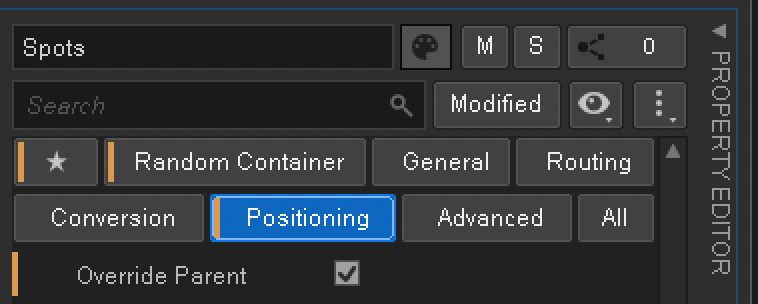
Once "Override Parent" is activated, we gain access to manipulate a range of settings for positioning sound objects within the stereo field (2D) and in 3D space. Among these is the "Center %" option, which we will examine in detail later.
We can also see the available panning modes: Direct Assignment, Balance Fade, and Steering.

Direct Assignment: This mode allows us to work with audio containing pre-mixed panning information that we want routed directly to the speaker channels corresponding to the data already embedded in the file. This mode preserves the pre-mixed balance and requires less processing power.
Balance-Fade: This allows us to manually adjust the volume balance of channels within a stereo or multi-channel field. This mode is recommended for mono or stereo sounds that lack pre-mixed panning and to which we wish to apply a momentary positional offset or a volume fade within the stereo or surround speaker field.
Steering: This mode alters the physical position by redistributing input channels among the bus output channels, including those designed to convey a sense of height. It is used to manipulate 5.1 or quadraphonic audio when we want to adjust positioning within a surround space or incorporate height information.
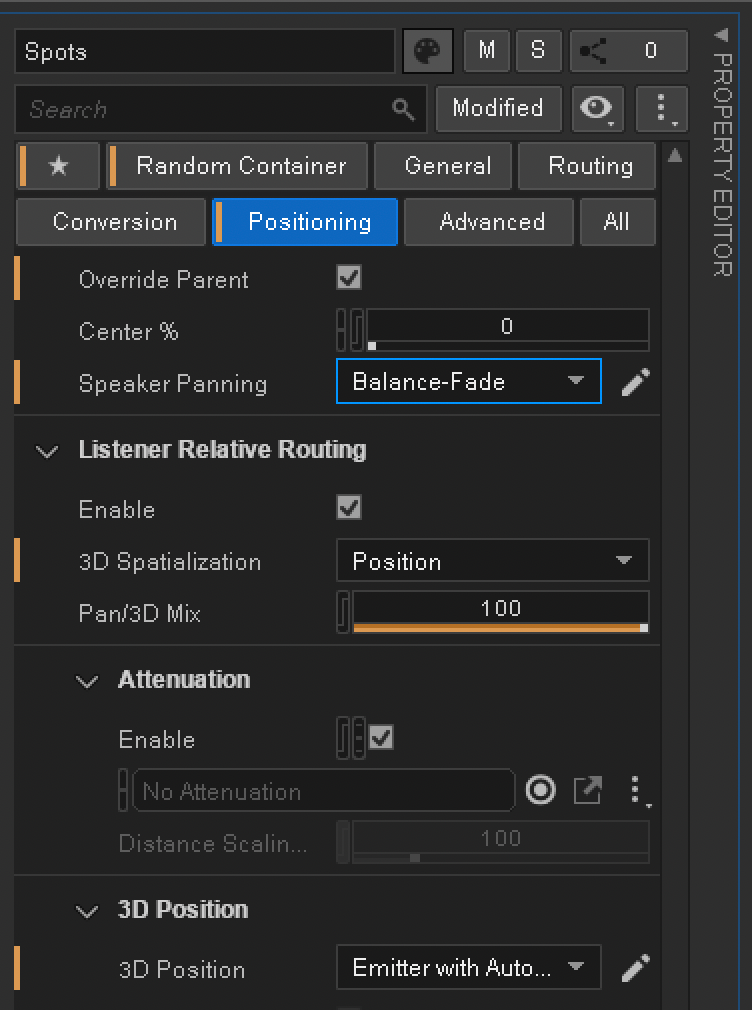
In this case, we will use the Balance-Fade option, as we want to assign a random, momentary position to each sound within our container. Make sure the "Enable" setting for "Listener Relative Routing" is active, the 3D spatialization type is set to "Position," and the Pan/3D Mix is set to 100.
In the 3D Position section, we will select the "Emitter with automation" option and click the small pencil icon. This opens the position editor window featuring a location map displaying five speakers, indicating the sound emission points for our objects. The center of the map represents the player's—or user's—location. Here, we will create various "Paths" (or position paths).

Position paths are a powerful tool as they enable the assignation of a random position to each sound when triggered, providing variety and movement across the stereo field. Clicking "New" creates a new point on the map, which can then be manipulated and positioned wherever desired.

Additionally, by double-clicking the map we can add points to create a sound movement route - or path. This process also adds points to the timeline located at the bottom of the window, which can be configured according to specific needs. A movement path is effective when a sound has sufficient duration to allow the sense of movement within the stereo field to be perceived.
In this case, my sounds are short—or are sounds that do not require repositioning while playing—so the paths I create will be simple: single points placed at various places within the map, using "Random" Play Type and "Step" Play Mode, and checking the "Pick New path when sound starts" box.

We can also add "Random Range" values so that the directionality varies—moving from left to right, back to front, or bottom to top. We will leave these unchanged for now.
Once we have finished creating the Paths, we will click on the "Ambiente" Blend Container and press the spacebar.
Congratulations!!!! — you’ve created your first dynamic environment in Wwise!
That wraps up this chapter. Don’t miss the next one, where we’ll finish analysing the Blend Container covering key concepts related to its operation, such as Real-Time Parameter Controls (RTPCs) and Blend Tracks.
Don’t miss it! Sound On!


Comments