

Getting to know Wwise: Containers Pt. 3. Blend Tracks and RTPCs.

Updated: 2 days ago
In the previous chapter, we learned how to use the Blend Container by learning about one of its core features: the simultaneous playback of containers or audio files. We also explored the use of randomness in the positioning of these files. If you haven’t had a chance to read the blog post or watch the video from the previous chapter, you can click here!
In this chapter, we will continue learning about the functions of the Blend Container—specifically, the use of Blend Tracks via Real-Time Parameter Controls (RTPCs). The RTPC is one of the most important mechanisms for connecting the game engine to Wwise. However, before we dive fully into RTPCs, we will go through the fundamental characteristics of Blend Tracks.
BLEND TRACKS
Blend Tracks can be categorized as sub-tracks used for mixing or crossfading within a blend container. This mixing and/or crossfading is controlled by an RTPC (Real-Time Parameter Control), which can, in turn, manipulate various settings—such as volume, pitch, and low-pass or high-pass filters, to name a few.
A blend track gives us the chance to mix complex soundscapes or simple audio layers. It is important to note that a blend track requires a pre-existing RTPC in order to function.

RTPC

RTPC, or Real-Time Parameter Control, is one of the most important mechanisms for connecting a game engine to Wwise. RTPCs are part of the Game Syncs tab inside Wwise. Game Syncs are elements that manage data which allow the game engine to communicate in real-time with Wwise responding to in-game logic, player states, and environmental changes.
It is a system that enables dynamic changes to the audio mix by controlling settings such as volume, pitch, low-pass filters, high-pass filters, or make-up gain—among others—by responding in real-time to numerical data received from the game engine.
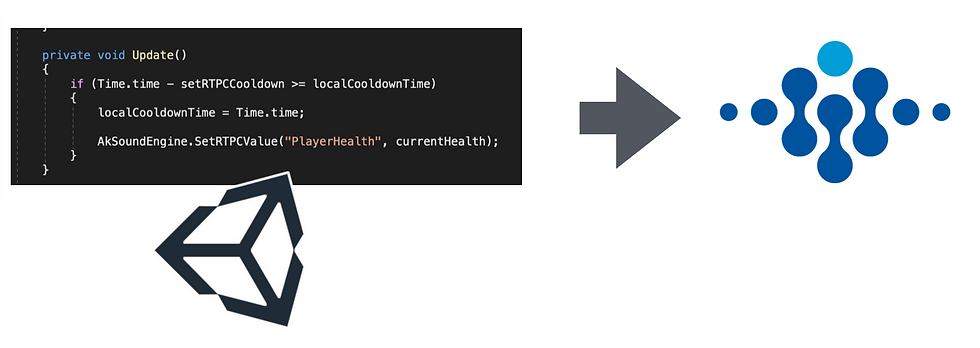
An RTPC features a numerical range with a minimum and a maximum that can be set according each project requirements. Within this numerical range, we can create response curves—linear, curved, exponential, or logarithmic—to define the specific behavior we want for audio playback based on the parameter values.

We are going to create our first RTPC; to do this, we will go to the Game Syncs tab, click on the Default Work Unit within the Game Parameters folder, and then select “Create new Game Parameter” from the top menu, which we will name “Horas_del_Dia” (Hours of the day).


A new properties window is created, which can be viewed by selecting the newly created Game Parameter "Hours of the Day." Within it, you will find several sections:
Bind to Built-In Parameter: In this section, you can map an RTPC to pre-established values that are part of the 3D positioning system and are automatically calculated by Wwise in real time. These include: distance, azimuth, elevation, emitter cone, obstruction, occlusion, listener cone, diffraction, and transmission loss. For these, you can edit the default value, and—in the case of the "Distance" RTPC—the maximum value as well. The ranges for the other parameters cannot be edited. We will explore these further throughout the following chapters.
Range: Here, you can adjust the range by setting the minimum and maximum values, as well as the default value. Interpolation: Here, you can control how abrupt the transitions between parameter values are when they change from within the game engine. There are three interpolation options available:
No interpolation (none): The parameter value changes instantaneously, with no smoothing applied to the transition.
Slew Rate: Forces a linear transition between values at a set speed (units per second), defined by an "Attack" (for an increase in value) and a "Release" (for a decrease in value).
Filtering over time: Applies a low-pass filter-style smoothing curve, with the range determined by "Attack" and "Release" settings (measured in seconds).
We can edit all the aforementioned attributes via the Property Editor, including the simulation value—a test value used to audition the behavior of the RTPC within Wwise.

We will now establish the range of values for our RTPC “Horas_del_Dia,” which will span from 0 to 24, simulating the 24 hours of the day; no interpolation (None) will be applied to it, and the default value can be set to zero.

The next step is to create a new Blend Container called "Tormenta" (or Storm), set to "Continuous" Play Mode, into which we will import three audio loops, each lasting approximately 10 to 15 seconds. The first should be light rain, the second medium-intensity rain, and the third, heavy-intensity rain. You may use a library of your choice to obtain these audio files. Don't forget to name them appropriately—for example:
sx_ambience_rain_light
sx_ambience_rain_medium
sx_ambience_rain_intense
We will enable the loop for each of these audio files.
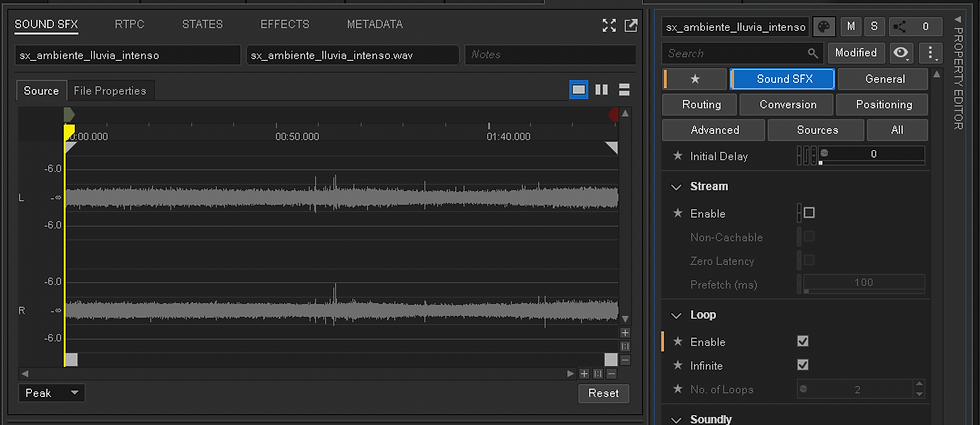
We will begin by creating a blend of these three audio files. Double-click on the blend container you just created to open the properties window, then click the “New Blend Track” button and name it “Intensity” (In the following image is called "Intensidad")

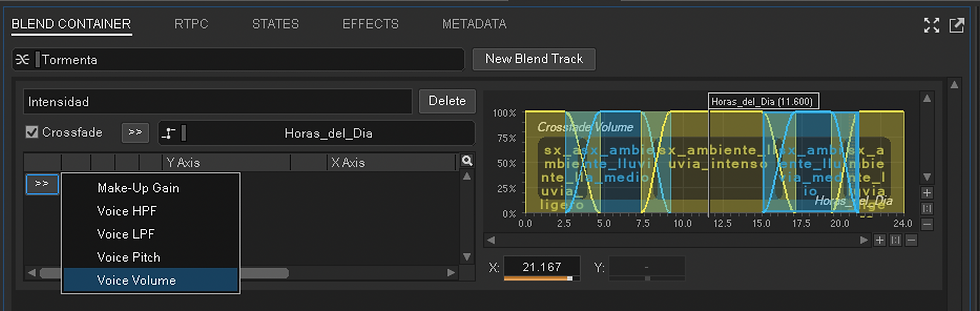
We will link our RTPC “Horas_del_Dia” by activating the Crossfade function; then, by clicking on the two arrows (>>), we will select “Game Parameters” from the menu and choose the RTPC “Horas_del_Dia”.

A graph showing the RTPC values appears, with a bar at the top labeled with the name of our RTPC; this bar can be moved from left to right across a range of 0 to 24.

The next step is to go to the contents window for the "Tormenta" (or Storm) blend container, located at the bottom of the window.

From there, you can drag the audio files into the “Blend Tracks” window on the right, arranging them in the desired playback order—in this case, moving from low intensity to high intensity and then back down, simulating the beginning and end of a storm.

As we add more audio files to the contents of the blend track, colored boxes will begin to appear on our graph, representing the duration of each audio file across the values of our RTPC parameter.

We can scale these according to the project's requirements and perform crossfades between them. In this case, I want it to rain throughout the entire 24-hour cycle in my environment, with the rain intensity reaching its maximum between 10:00 and 15:00. I encourage you to experiment by creating various crossfades between the different areas and testing them by moving the RTPC slider, ensuring that the transitions between rain intensities feel as natural as possible.
As you can see, once audio clips are added to a blend track, the X-axis displays the values assigned to the "Horas_del_Dia" (Hours of the Day) RTPC, while the Y-axis shows the ranges for various settings that can be controlled via any RTPC. These settings include: voice volume, voice pitch, voice low-pass filter, voice high-pass filter, and make-up gain.

You can hear the mix result for the storm areas in the following section of the video tutorial:
As an extra, we will put into practice the knowledge you’ve gained from previous chapters by creating a series of thunder sounds that play back randomly from a "random container," with an audible volume only between 10:00 and 15:00—the period when our storm reaches its peak intensity.

To do this, we will create a new Random Container called "Truenos" (or Thunder), with the Play Type set to "Random," the Random Type set to "Shuffle," a repetition limit of 2, the Play Mode set to "Continuous," and the Scope set to "Global." We will also enable "Trigger Rate" transitions with a duration of 10 seconds, incorporating a randomization range with a minimum of -2 seconds and a maximum of 10 seconds.
As a suggestion, consider enabling randomization for the "Low-Pass Filter" setting; this will add a greater sense of distance variation to the thunder sounds—which will feature varying intensities—that I will source from the Soundly library and subsequently import into the Wwise project. I encourage you to experiment with different randomization values for the trigger rate until you achieve the result you like best.
Let's link this newly created random container to the “Horas_del_Dia” RTPC. To do this, click on our “Truenos” (or Thunder) random container to select it, then navigate to the RTPC tab. There, you will find a button with two arrows (>>) on the left side of the window. Clicking it will open a drop-down menu containing a list of all the settings that can be controlled via an RTPC; in this case, select “Voice Volume,” then click the arrows that follow to choose our “Horas_del_Dia” RTPC.

Upon clicking, a drop-down menu will appear, displaying a list of all the settings that can be adjusted using an RTPC.

In this case, we will select Voice Volume and click the arrows to the right to choose our “Horas_del_Dia” RTPC.

A graph appears with a red line, which we can manipulate to control the volume across the range of values we have previously established.
Having selected "Voice Volume," the graph displays the preset RTPC values, with the X-axis ranging from 0 to 24, while the Y-axis shows values in decibels. These are offset values that are added to or subtracted from the settings configured in the Property Editor. If the line remains perfectly horizontal at -0.0, it means there is no alteration to the volume level established in the Property Editor settings.

Our goal is for the thunder to be heard most intensely between 10:00 and 15:00; therefore, we will manipulate this line so that the thunder integrates naturally into our environment. By clicking on the line, new inflection points appear; I will create a graph that produces a "fade-in" from 08:00 to 10:00 and a "fade-out" from 15:00 to 17:00, allowing the sounds of thunder to gradually fade away.

During the test, we can hear the thunder begin to emerge starting at 8:00, reaching its peak volume between 10:00 and 15:00—just as we planned—and then fading away between 15:00 and 17:00, giving way to calmer rain for the remainder of the day.
In this part of the video tutorial, you can hear the final result of the thunder implementation:
You might be wondering how we can make the thunder and rain blend together and respond simultaneously to changes in the value of the RPTC "Horas_del_Dia". Well, that is precisely our final step.
To do this, let’s recall that one of the fundamental properties of a "blend container" is its ability to play back multiple containers simultaneously. Therefore, we will create a new blend container called "Ambiente General" (General Ambience) and drag both the "Tormenta" (Storm) blend container and the "Truenos" (Thunder) random container into it.

To control the audio behavior of both child containers throughout the day, we will repeat one of the methods learned in this chapter: go to the RTPC tab of our newly created "Ambiente General" (or General Ambience) blend container, click the double arrows (>>), select "Voice Volume" from the drop-down menu, and then click the double arrows (>>) again to select our "Hours_of_the_Day" (Horas_del_Dia) RTPC. This will cause a graph with a red line to appear. We will set it as a straight line at -0.0 across the 0 to 24 range, as shown.

When you select the "General Ambience" blend container and press the spacebar, the two child containers—"Thunder" and "Storm"—will play. Using the RTPC tab, you can audition how your rain environment behaves by moving the slider to navigate through different RTPC values, which dynamically blends the two child containers.
Now you can control the weather sounds in real time!
You can hear the final result in this section of the video tutorial:
With this, we conclude the analysis of the main functions of the Blend Container. Don’t miss the next chapter, where we’ll analyse the Switch Container and topics relevant to how it works!
See you soon! Sound on!


Comments